Bringing your book into Closr
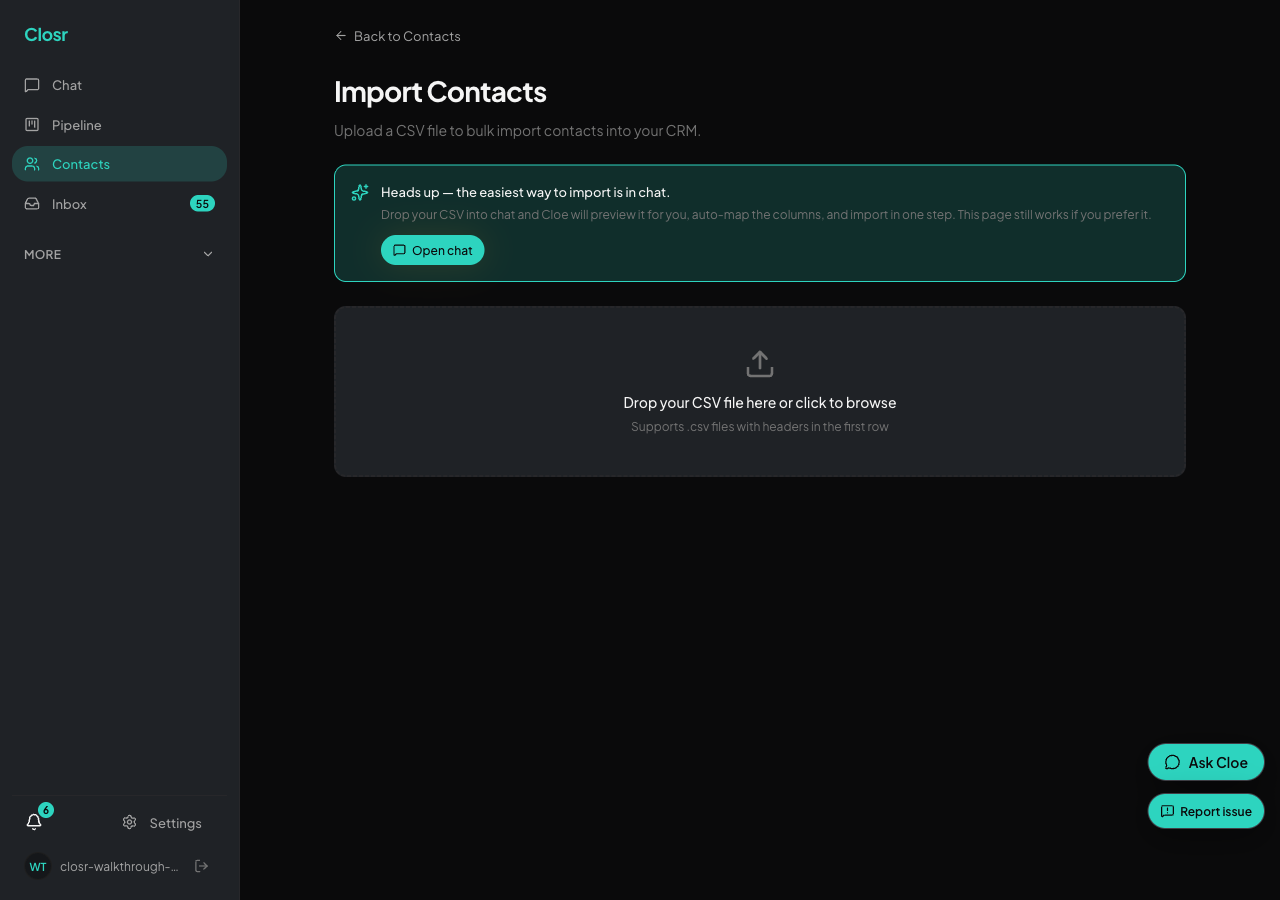
Go to Contacts, then open the Migrate / Import page. You will see three sections you click to expand: 'Migrate from Follow Up Boss' (open by default), 'Import Any CSV', and 'Paste a List'.
Import Any CSV
- 1Drag a .csv file onto the upload area or click Browse. Max file size is 50 MB.
- 2Closr previews the first 5 rows and all column headers, then auto-detects column mapping.
- 3Review the mapping. Override any column with the dropdown. You must map at least one of: First Name, Full Name, or Email.
- 4Click Import. Closr writes the contacts.
Columns Closr maps automatically: first name, last name, full name (split on the first space), email, phone, company, title, source, tags (comma-separated in the cell), notes, property address, birthday, stage. Any column that does not match gets saved to custom fields on the contact.
Paste a List
Paste free text into the box, one entry per line. Useful for a quick batch of names and emails you copied from somewhere.
How dedup works
Duplicates are skipped, never merged. CSV and paste dedup by email. A row with no name AND no email is also skipped. Previously deleted contacts do not count as duplicates, so a wipe-then-reimport works.
If 50 or more rows are in your file and over 30 percent have no name and no email, the whole import aborts before writing anything. Fix the file and re-upload.
After the import
The result card shows: Imported / Duplicates / Skipped / Total Rows. A collapsible warnings list shows up to 20 problem rows. Then 'View Contacts' and 'Import More'. If you have hit your plan contact limit, you see an upgrade prompt before writing begins.
Per-CRM guides
- •
contacts-import-fub: Follow Up Boss (CSV and API key) - •
contacts-import-lofty: Lofty (FKA Chime) - •
contacts-import-kvcore: kvCORE and BoldTrail - •
contacts-import-brivity: Brivity - •
contacts-import-agent-locator: Agent Locator - •
contacts-import-other-crm: any other CRM via CSV